Step 1. Access a Short Summary of Bandwidth Usage
When you log in, you can immediately see the bandwidth use summary in the right-hand panel under the statistics section.
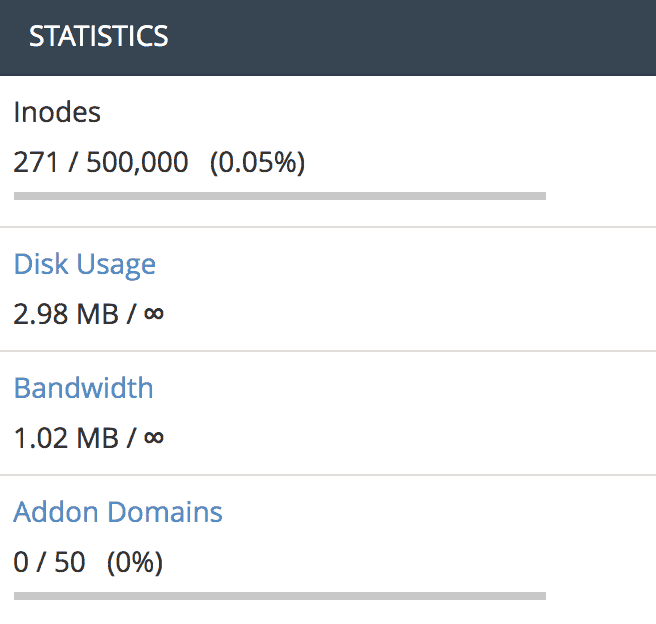
Step 2. Access the Bandwidth Statistics in cPanel
You can find the full statistics presented in detail by clicking the Bandwidth link from the previous step. Alternatively, you can also search bandwidth by name with the search feature.

When you click either of the two options, it will direct you to a new window that shows the consumption based on a daily, weekly, and monthly basis as well as the total sum of your usage.
Have a look at our development site’s daily bandwidth use as an example.

And as you can see, cPanel currently monitors traffic coming from these sources:
- HTTP Traffic – represents the data sent and received over the protocol
- FTP Traffic – tracks the transfer protocol that you use to access and share files between your computer and the server
- IMAP/POP3/SMTP Traffic – represent the email communication that happens between your server and a computer/mail client
There you have it, all you need to know about bandwidth usage. It’s very helpful to understand what’s causing you reaching the quota limit and act accordingly.